Your Logo and the Look of Your Quotes
Eleira Studio guide · about 2 min
Your logo appears on your quotes, so clients see your brand, not just a price. It takes a minute.
1. Upload your logo
- Open Settings (under “More” on your phone, or at the bottom of the side menu on a computer).
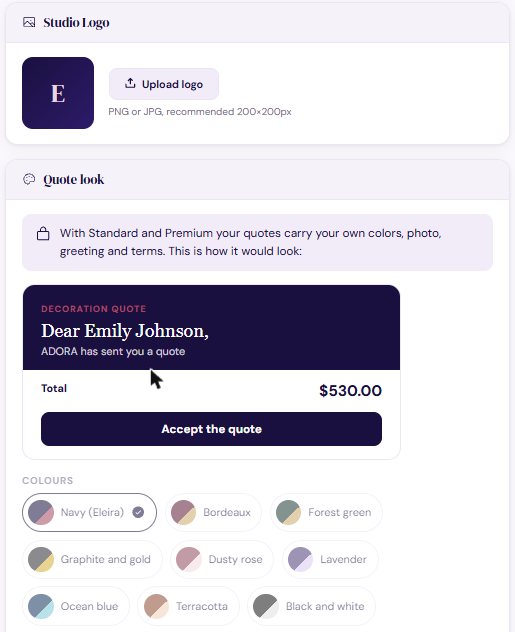
- Under Studio Logo, tap Upload logo and choose the file — PNG or JPG, ideally square (about 200×200 pixels).
- Tap Save changes at the top.
No logo yet? Use a nice square photo of your work, or just your initials. Simple beats nothing.
2. Quote look
Below the logo, Quote look shows how your client sees your quote. On Standard and Premium you choose the colors (navy, bordeaux, forest green, dusty rose, black and white and more), a photo behind the header and your greeting — so every quote matches your style.
Next step
Settings: Labor Rates, Travel, Deposit and Sales Tax
What's in Eleira Studio Settings and how to fill it in once — labor rates, minimum price, quote expiry, travel, deposit and sales tax.
Can't find an answer? Email us at [email protected] — Nadezhda replies personally. · All guides