Calculator Schedule: “Suggest Times” and Stock for the Exact Days
Eleira Studio guide · about 2 min
The Calculator (Standard) already knows how long the decor takes: prep, setup, takedown and travel. In the last step, the Schedule card turns that into times on your calendar — with one tap.
1. Suggest times
In step 4 of the Calculator, above the save buttons, is the Schedule card. Under the heading you'll see what was worked out, e.g. “prep about 6 h 50 min, setup 1 h 35 min, dismantling 40 min, travel 25 min”. Tap Suggest times:
- Setup ends 15 minutes before the event starts and begins as early as setup plus travel takes.
- Collection starts when the event ends (or at the takedown time if it's on another day) and lasts as long as the takedown.
- Prep is split into blocks of up to 6 hours on the days before setup, from 10 AM.
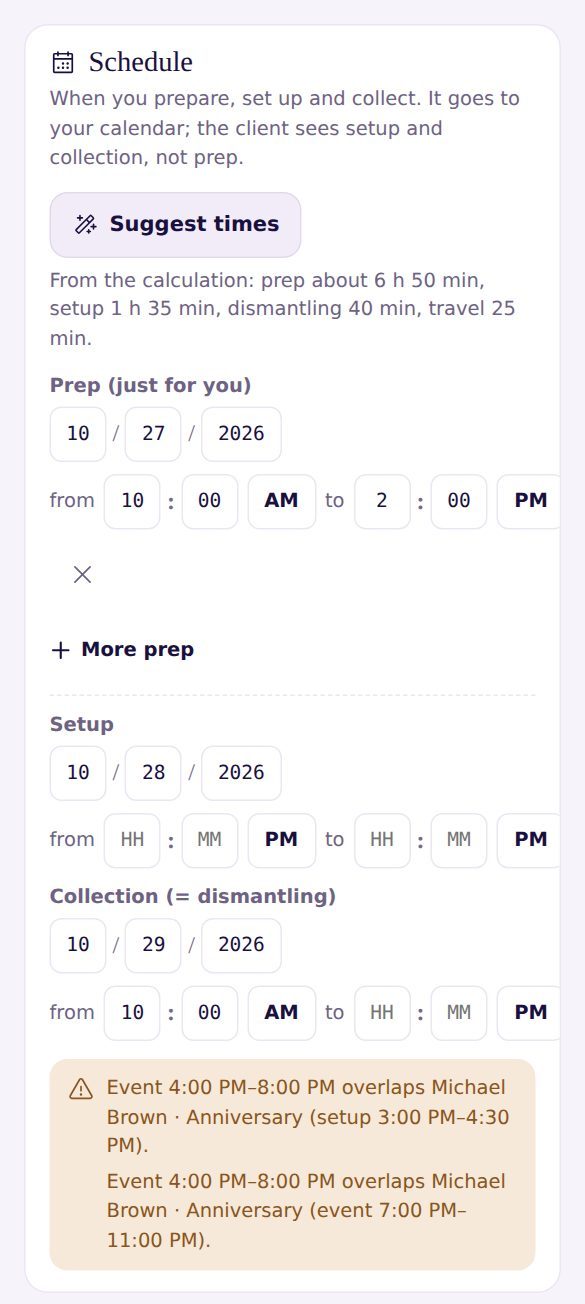
The suggestion is a starting point — change any time by hand. Prep is just for you; setup and collection go on the client's PDF.
2. Warnings
If the times overlap another job of yours, or stock you've reserved is booked for another event on those days, the card shows it at the bottom in yellow.
3. Stock is reserved for the exact days
When you reserve from your inventory (arches, stands, florals, arrangements), the reservation runs from setup to collection, not just the event day. If you collect the next day, those items are booked that day too — and Studio won't give them to another event then.
Once saved, everything is on your calendar, just like with Quick Quote, and you can move it with Times.
Online Contract and Attachments with Your Quote
Set up your contract once in My Forms. The client accepts it with the quote with a tick and their name, and you keep a copy. Standard.
Can't find an answer? Email us at [email protected] — Nadezhda replies personally. · All guides