Online Contract and Attachments with Your Quote
Eleira Studio guide · about 6 min
With Standard, your client can accept a contract together with the quote: they open the link, tick “I have read and accept the contract”, type their name and tap Send my response. You keep a copy with their name, the date and the time. You can also add your own PDF attachments — venue rules, balloon care tips or your own contract.
1. Set up your contract once
Open My Forms from the menu.
- Your details in the contract — legal business name, business address, state and county, payment methods. Fill them in once.
- Your terms — answer with one tap: when the balance is due, what happens if the client cancels, how long you wait without charging extra, what happens to the balloons after the party and more. The first option is the most common one.
- Below is the Eleira template — the contract with your answers. See it filled in shows it with the details of your latest quote.
- Tap Save the contract.
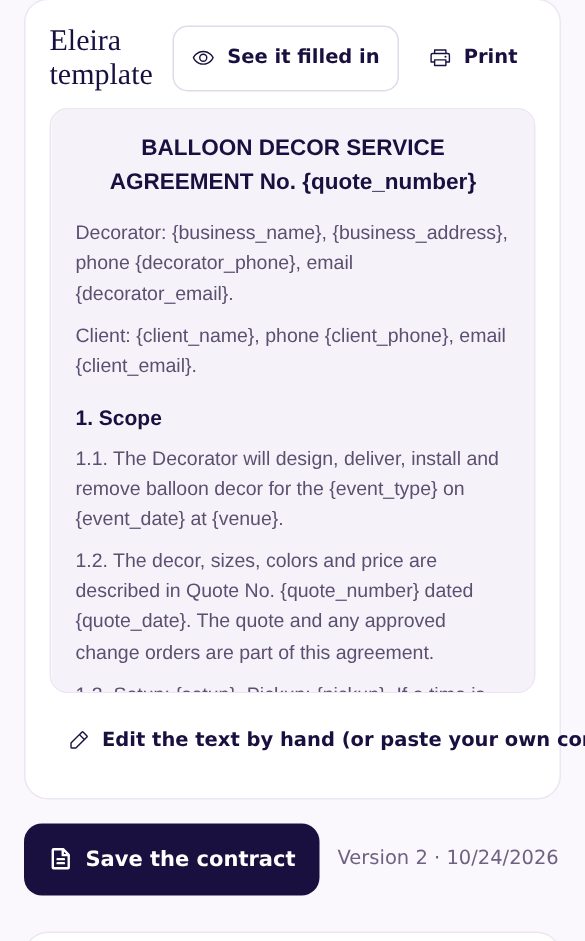
Have your own contract? Tap Edit the text by hand (or paste your own) and paste it in. The buttons above the box insert details that fill in by themselves — {client_name}, {event_date}, {total_price} and more.
2. Attachments (PDF)
Also in My Forms, under Attachments (PDF), tap Upload PDF. The file must be a PDF up to 5 MB (from Word: File → Save As → PDF). Standard has room for 5 files, Premium for 20.
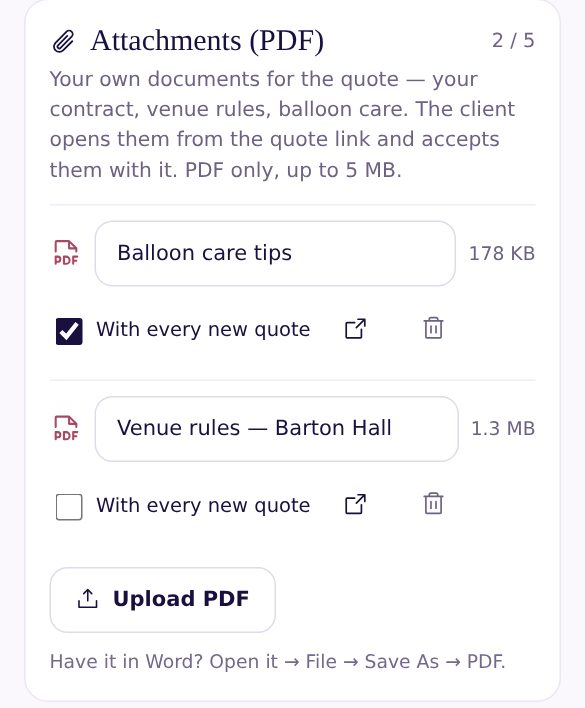
A file marked With every new quote is ticked in new quotes automatically. Remove hides it from new quotes, but clients who already accepted it can still open it.
3. In your quote
In Quick Quote, under the notes for the client:
- The client accepts the contract with the quote — on by default. See the contract shows the exact text for this quote.
- Attachments for this quote — tick the files for this client.
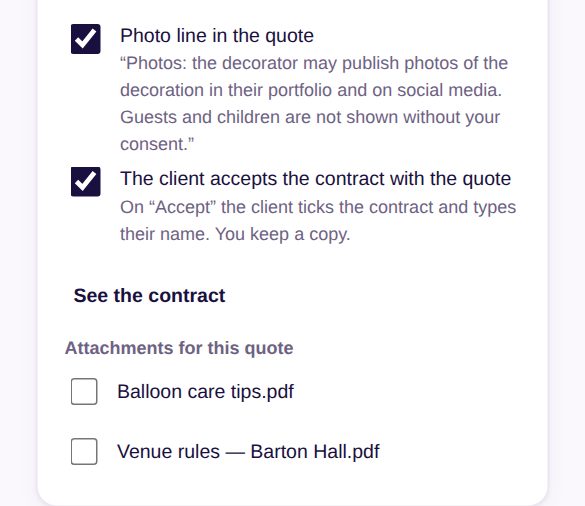
Send the quote as a link (Share as link or email). The contract works with the online quote — it isn't in the printable PDF.
4. What your client sees
On the quote page, the client sees Read the contract and your attachments. When they tap Accept the quote, they must tick “I have read and accept the contract and the attachments” and type their name.
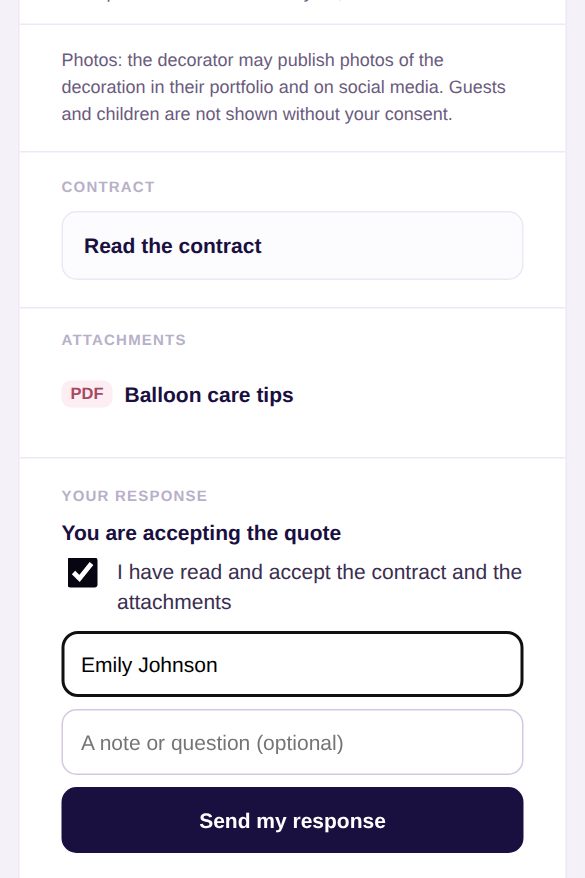
Afterwards the client can download the accepted contract. In My Quotes the quote shows Contract accepted · date · name — tap it to open the copy with the date, time and attachments. Print it or save it as a PDF from there.
Job Forms: Venue Questionnaire, Prop Rental Agreement and On-Site Handover
A venue questionnaire by link, a prop rental agreement accepted online and an on-site handover with photos and a finger signature. Premium.
Can't find an answer? Email us at [email protected] — Nadezhda replies personally. · All guides