Prep, Setup and Collection: Times in Your Quote and Calendar
Eleira Studio guide · about 4 min
A balloon setup is more than the party time. There's prep in your studio, setup at the venue and collection afterwards. Once you add them, Studio shows them on your calendar, warns you when two jobs overlap, and includes them in your evening email. Works on every plan.
1. Times in your quote
In Quick Quote, in the Event section, under the start and end time there are three rows:
- Setup — date and from–to. The client sees it on the quote, so they know when to let you in.
- Collection — when you take the decor down. If it's the next day, change the date.
- Prep (just for you) — when you inflate and build. It can be over several days: tap More prep to add another row. The client doesn't see it.
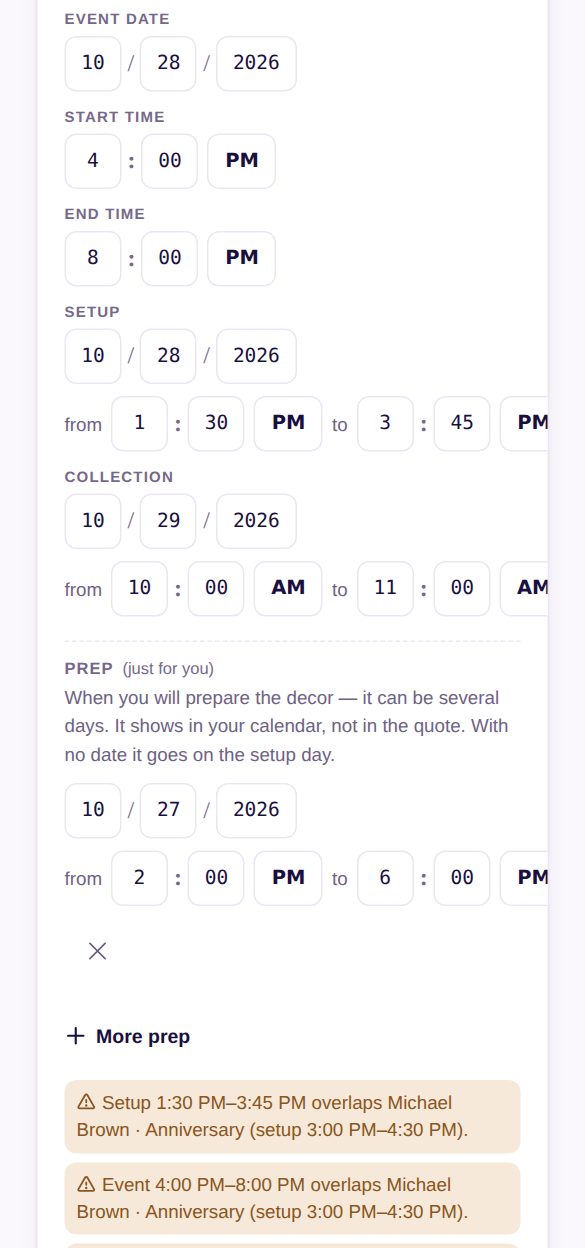
If setup ends after the party starts, or overlaps another job of yours, Studio says so right away with a yellow note. You can still save — it's only a warning.
2. Your calendar shows the whole day
Open Calendar and pick a day. Everything is in time order: prep, setup, the event and collection. Between two jobs that overlap you'll see Overlaps the one before.
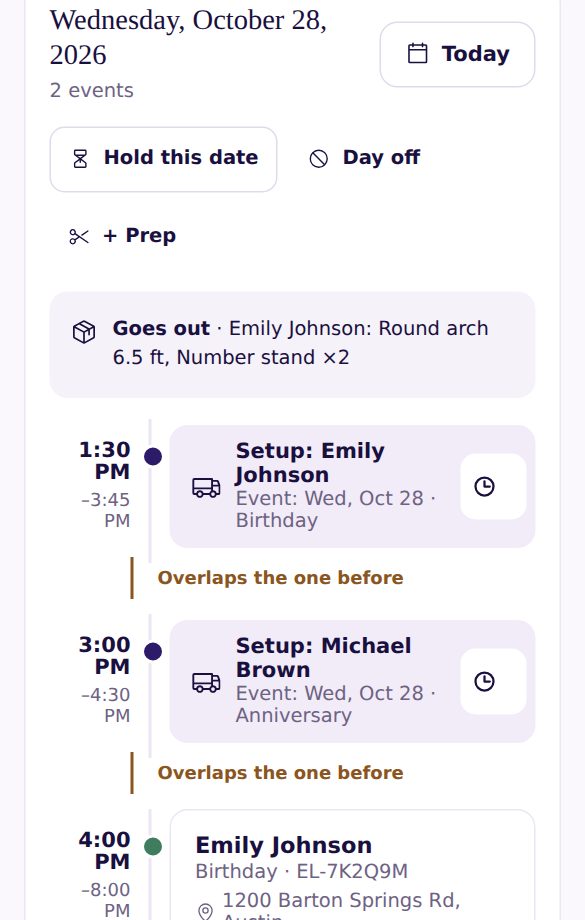
In the month view, scissors mark prep days and the truck marks setup or collection. If you've connected your calendar (Google or your phone), setup and collection show up there with their times too.
3. Change the times right from the calendar
The client called — the venue opens later? No need to open the quote. Tap Times on the event (or the clock next to the setup) and change what you need. The warnings update as you type.
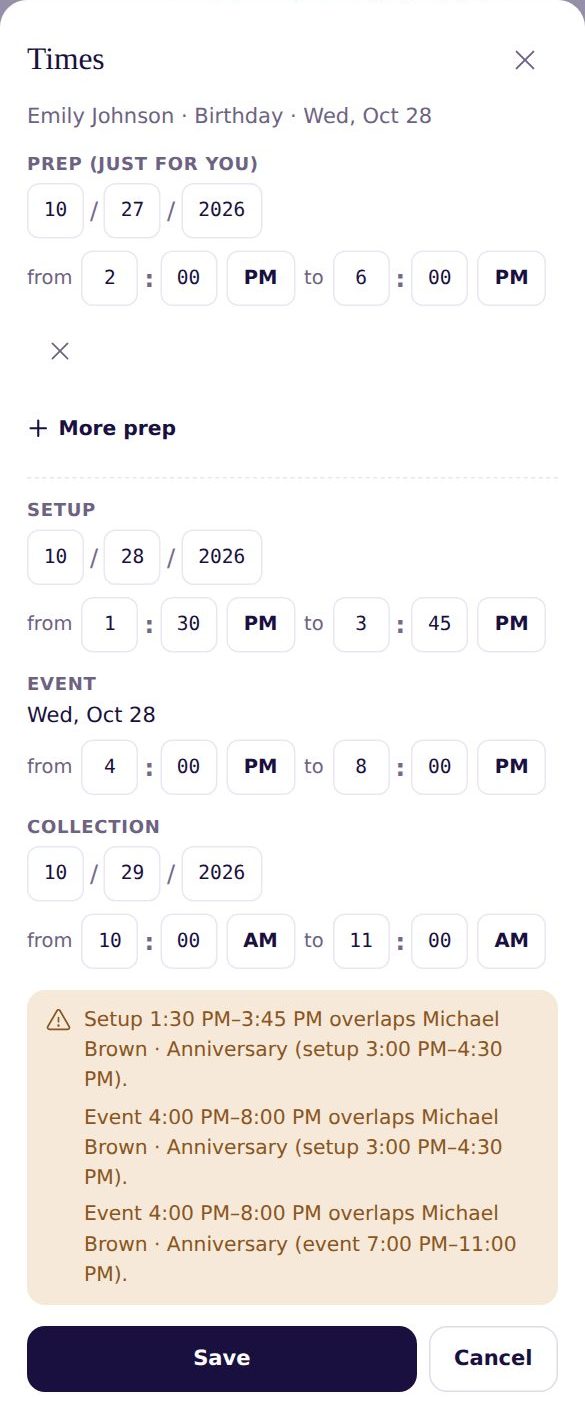
- If you change the event time, Studio asks first, because the client sees it: Yes, change it or Keep the old time.
- If you've reserved stock and the new days overlap another job, you'll see what's short.
- If the quote is already sent, the link updates by itself. If you sent a PDF, send it again.
4. The evening “Tomorrow” email
Every evening around 6 PM (Eastern Time), when you have something on the next day, Studio sends you a short email: your jobs by time (setup, event, collection), the address with a map link, the client's phone, the balance due, tomorrow's tasks and dates you're holding. If yesterday's event has no photos yet, it reminds you about those too.
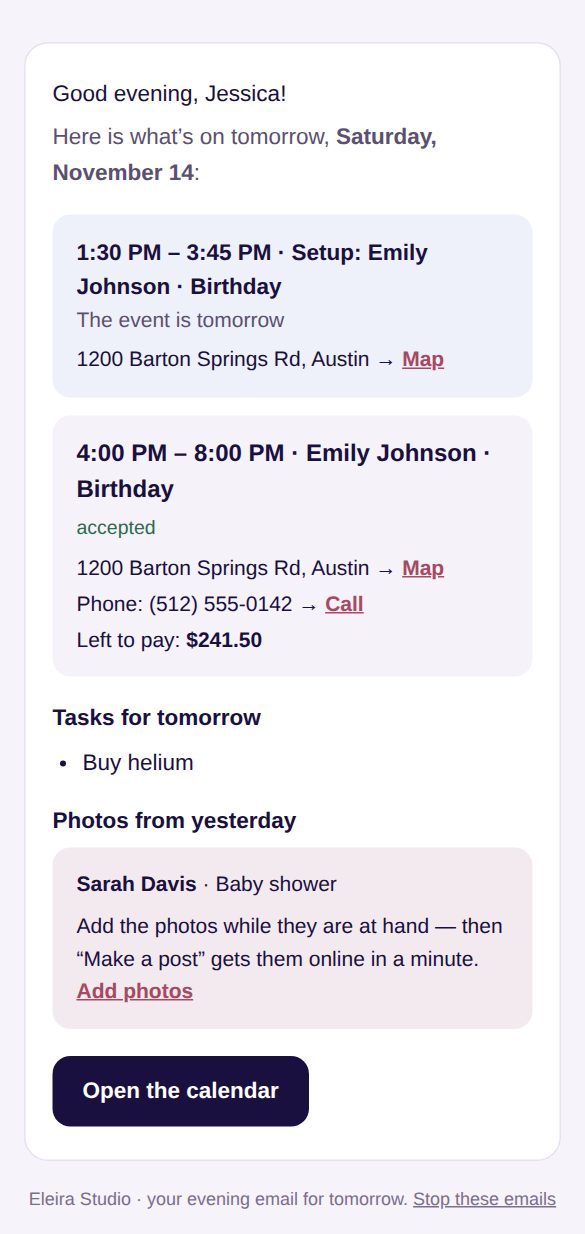
It's on for everyone. To turn it off, go to Settings → App → Evening email for tomorrow, or use the link at the bottom of the email.
Calculator Schedule: “Suggest Times” and Stock for the Exact Days
The Calculator suggests prep, setup and collection times from the worked-out hours and travel, and stock is reserved from setup to collection. Standard.
Can't find an answer? Email us at [email protected] — Nadezhda replies personally. · All guides