Hold a Date, Mark Days Off and See Your Calendar in Google
Eleira Studio guide · about 4 min
A client calls: “Are you free on the 21st? I'll get back to you in a few days.” There's no quote yet, but you don't want to give the date to someone else. That's what Hold this date is for. Here you'll also see how to mark your days off and how to see your Studio calendar in Google Calendar or on your iPhone. Works on every plan.
1. Hold the date
- Open Calendar and pick the day.
- Tap Hold this date.
- Fill in what you know: the client's name and phone, occasion, start time and a note (what they want, colors, budget). Everything is optional.
- Under Hold for, choose 1, 3, 7 or 14 days. The date it ends shows underneath.
- Tap Hold the date.
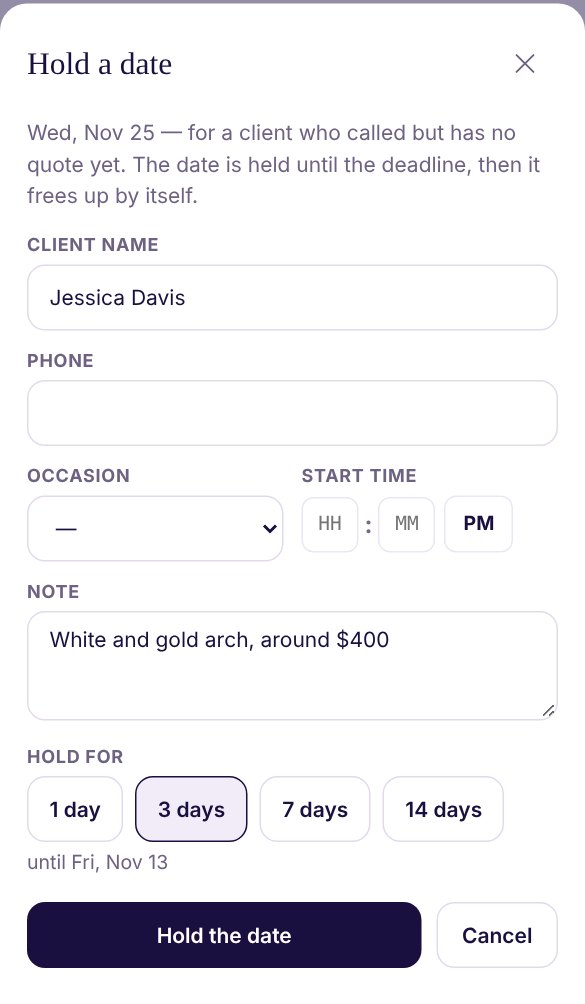
If you already have an event or another held date that day, Studio tells you in yellow before you save.
2. The held date on your calendar
In the month view, held dates have a small mark, and the key under the calendar explains the icons (an hourglass for “held”). Pick the day and you'll see a yellow card with the client, their phone and how long the date is held.
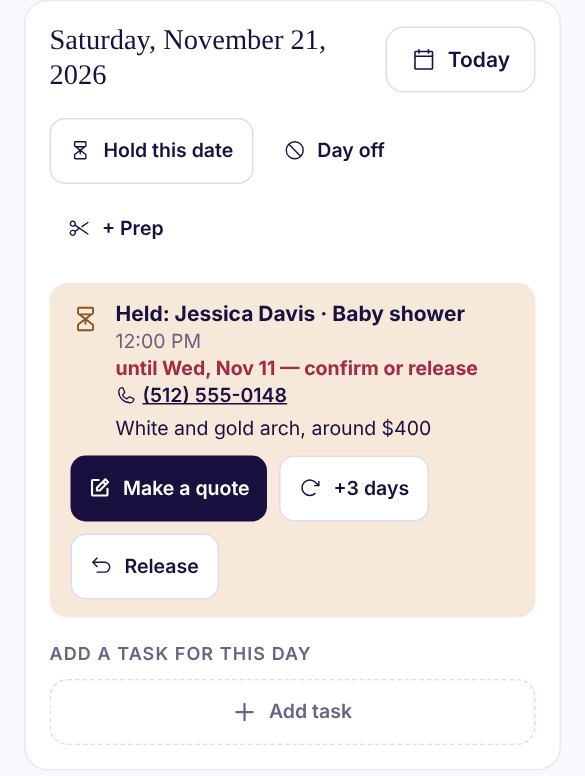
- Make a quote: the client said yes. Quick Quote opens with the name, phone, date and time, and your note goes into the internal notes. Once you save the quote, the hold is gone and the date becomes an event.
- +3 days: the client needs more time.
- Release: the client changed their mind. The date is free again.
When the hold ends today or tomorrow, the card says “confirm or release” in red, and your dashboard reminds you under “Needs attention”. Held dates are also in your evening “Tomorrow” email. If you do nothing, the date frees up by itself when the hold ends.
3. Days off
Vacation, a family event, or just a day you don't take work? Pick the day on the calendar and tap Day off. Choose the dates (if it's more than one day) and add a note if you like, such as “Vacation”. Tap Save.
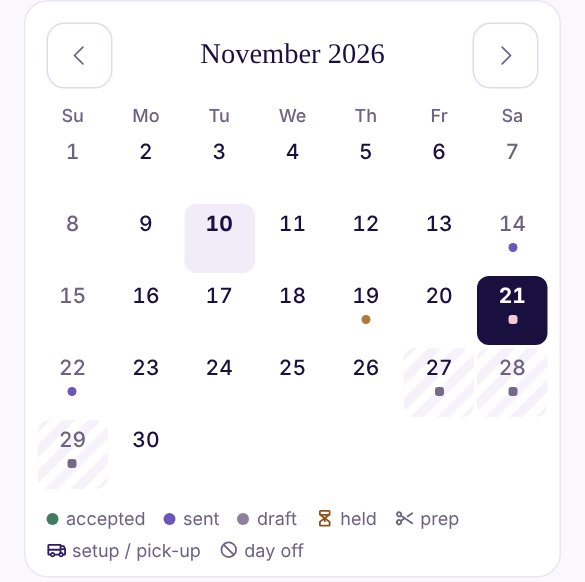
If you later make a quote for a day off or a held day, a yellow warning shows under the date in the quote. You can go ahead if you decide to. It's only there so you don't forget. To remove a day off, tap Remove.
4. Your Studio calendar in Google or on your phone
Want to see your jobs in the calendar you already use? Add your private link once:
- In Calendar, tap Google / phone at the top.
- Tap Create my link, then Copy.
- Open the steps for your calendar:
- Google Calendar: on a computer, open calendar.google.com (the phone app can't add it). On the left, next to “Other calendars”, click + → “From URL”, paste the link and click “Add calendar”. After that it shows in the phone app too.
- iPhone: Settings → Calendar → Accounts → Add Account → Other → “Add Subscribed Calendar”, paste the link → Next → Save.
- Outlook: on the web, open Calendar → Add calendar → Subscribe from web and paste the link.
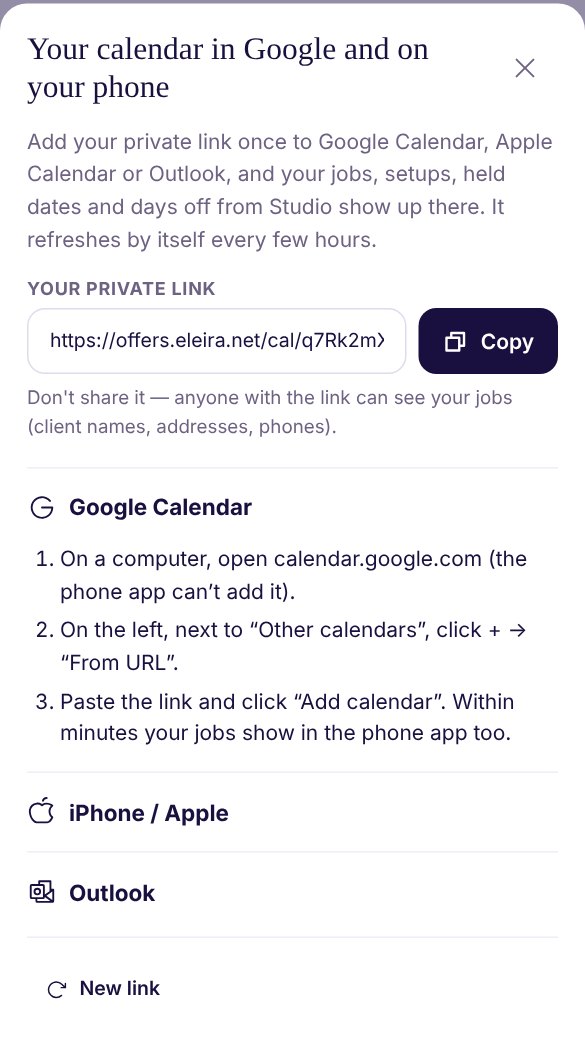
What you'll see there: your events (the ones not accepted yet start with “[Quote]”), prep, setup and collection, held dates and days off. It refreshes by itself every few hours. Google can be slower, so a new quote may show up there a little later.
- It works one way. Make changes in Studio, not in Google.
- Don't share the link. Anyone who has it can see your clients' names, addresses and phone numbers. If you sent it to someone by mistake, tap New link. The old one stops working, and you add the new one again.
Calculator Schedule: “Suggest Times” and Stock for the Exact Days
The Calculator suggests prep, setup and collection times from the worked-out hours and travel, and stock is reserved from setup to collection. Standard.
Can't find an answer? Email us at [email protected] — Nadezhda replies personally. · All guides