Looks: from Idea to Quote
Eleira Studio guide · about 4 min
With Looks you set up your decorations once — with a price, a palette and a photo. Then you send them to a client as a link: the client picks one, and you make the quote with one button. From the same Looks you make “My balloon menu” — a PDF with your prices. All of it is on every plan, the free one too.
1. Make a Look — or edit a ready one
Open Looks (Визии) in the menu. You'll find ready Looks with a drawing and a “from” price worked out with your own rates from Settings. Tap “Customize” on a ready Look and change what you like: palette, your photo, name and “from” price. The drawing changes colours at once, before you save.
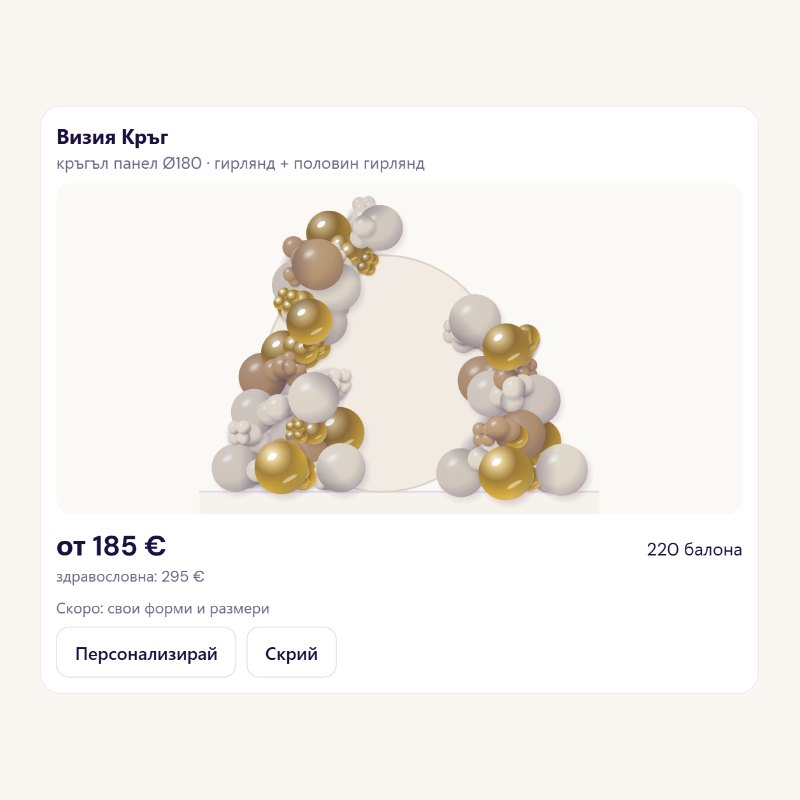
With “Show the price to the client” you decide whether the client sees this Look's price. The free plan keeps up to 3 of your own Looks; Standard and Premium have no limit.
2. Send a link from the inquiry
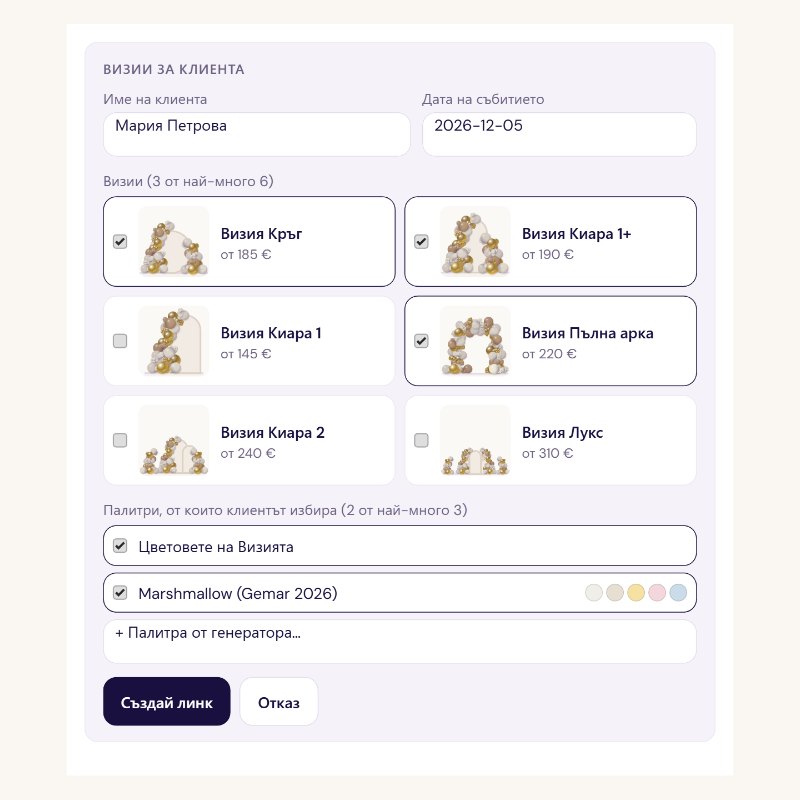
Open the inquiry in Direct inquiries and tap “Send Looks”. Pick 2–6 Looks and up to 3 palettes for the client to choose from. The name and date come from the inquiry. Tap “Create link”, then “Copy link” or “Share” — for Viber, WhatsApp or email. The link works for 30 days; you can extend or cancel it.
3. The client chooses — you make the quote
The client opens the link on their phone, tries the palettes and taps “I want this look”. If they have something else in mind, they write in “Have your own idea?” and add up to 3 inspiration photos. The answer arrives in the same inquiry, with a notification.
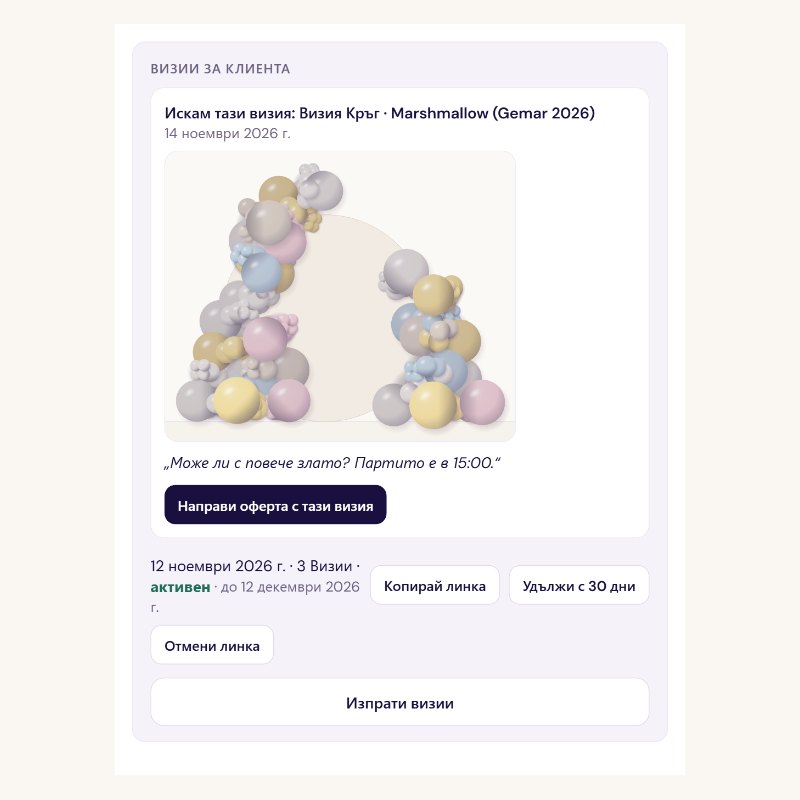
Tap “Make a quote with this look”. A Quick Quote opens with a line for the Look and its price, the drawing in the chosen palette and the client's note — for you only. Check it and send it (see Your first quote).
4. “My balloon menu”
In Looks, tap “My balloon menu”. Pick up to 9 Looks and their order. You get one A4 PDF page with a “Prices” stamp and the year — for Instagram, Viber or print. Standard adds a Story image and coloured backgrounds.
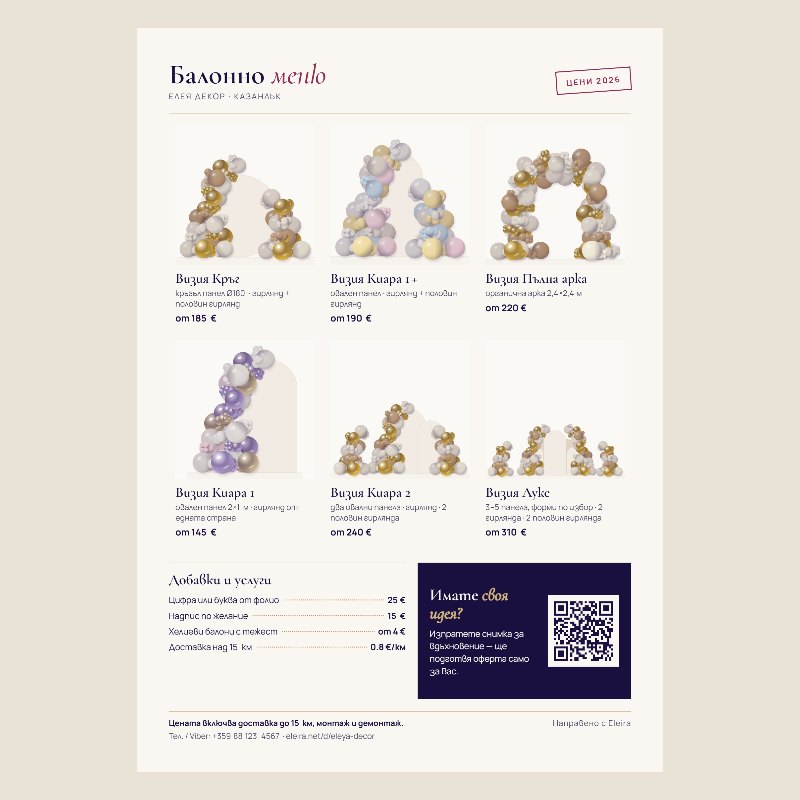
Below the Looks come “My extras and services” — up to 6 lines, for example “Foil number — €25” or “Delivery over 15 km — €0.80/km”. You fill them in once in Settings. If your web page is published, the menu has a QR code to it. In January, Studio reminds you to check your prices and download a new menu.
5. Quick quote: Quick, Detailed and Parts
“New quote” (the “+” button or Quotes) asks where to start: from a Look (picture, name and price ready), from a photo (Studio counts the balloons) or blank. The draft saves itself from the first field. If you close your phone, “Continue the quote for …” waits on your dashboard. Drafts don't count toward the free plan's 5 quotes a month — a sent quote does.
Quick is for everyday quotes: picture → one price → extras from “My extras and services” → “Send” (PDF, link or email). Detailed has every field — several lines, discount, deposit, venue, times, contract. You switch with one button, and Studio remembers which you use.
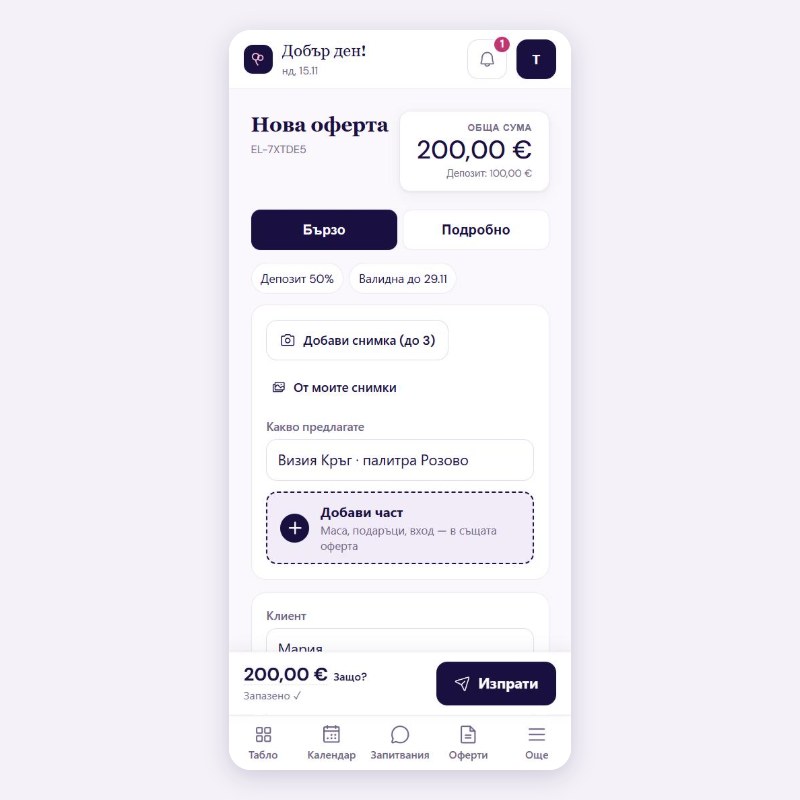
Parts. When one event has several decorations — main decor, a table, gifts — tap “+ Add a part”. Pick a name (or type your own) and make the part from a Look or blank. Each part has its own name, picture and price; the total is in the bottom bar. Below the parts you choose what the client sees: “One total” (the parts with what they include, and one total) or “Price of each part”. You can rename the word “Part” in Settings — to “Corner” or “Zone”, say. The client only sees the parts' names.
“Full price” and “Break-even”. For a part made from a Look, Studio knows what goes into it and works it out with your settings: break-even = materials + your time + transport; full price = materials + your time + profit. On Standard, tap the total (“Why?”) to see the breakdown. On the free plan you see a warning when the price is under break-even.
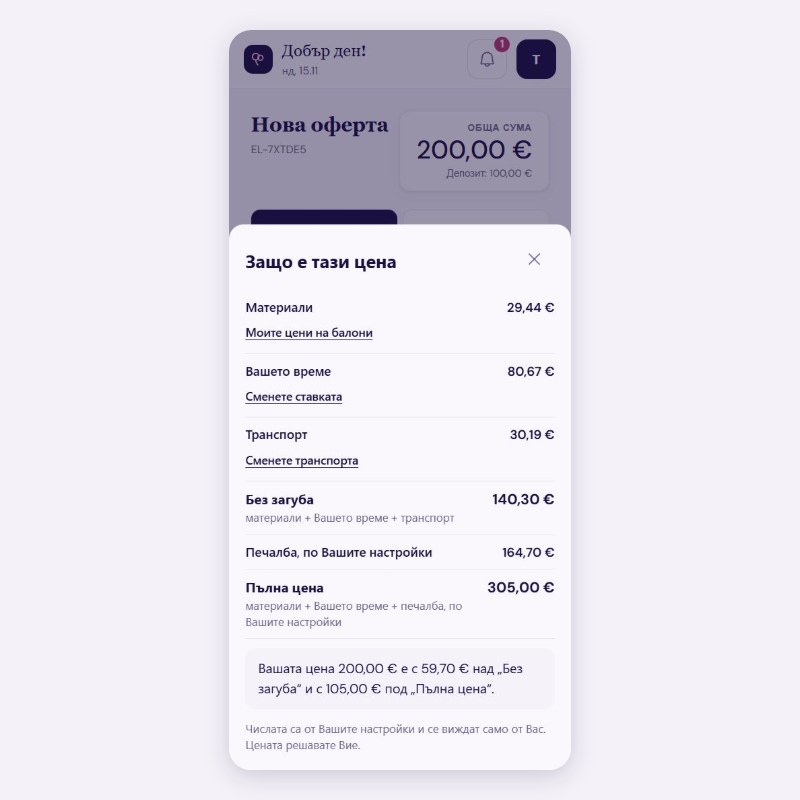
The Looks and quote screens in Studio are in Bulgarian for now.
Can't find an answer? Email us at [email protected] — Nadezhda replies personally. · All guides