How to Create Your First Quote in Eleira Studio
Eleira Studio guide · about 5 min
Quick Quote is the fastest way to send a client a clear, branded quote: what the decor includes, what it costs, the deposit and how long the price holds. It works on every plan — the Free plan includes 5 new quotes a month.
1. Open Quick Quote
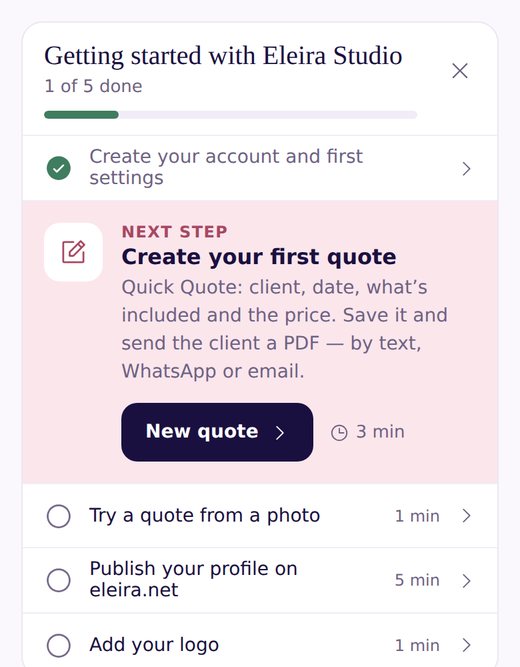
On your dashboard, tap the button in the Getting started card — or open My Quotes and tap New quote.
2. Client, event and location
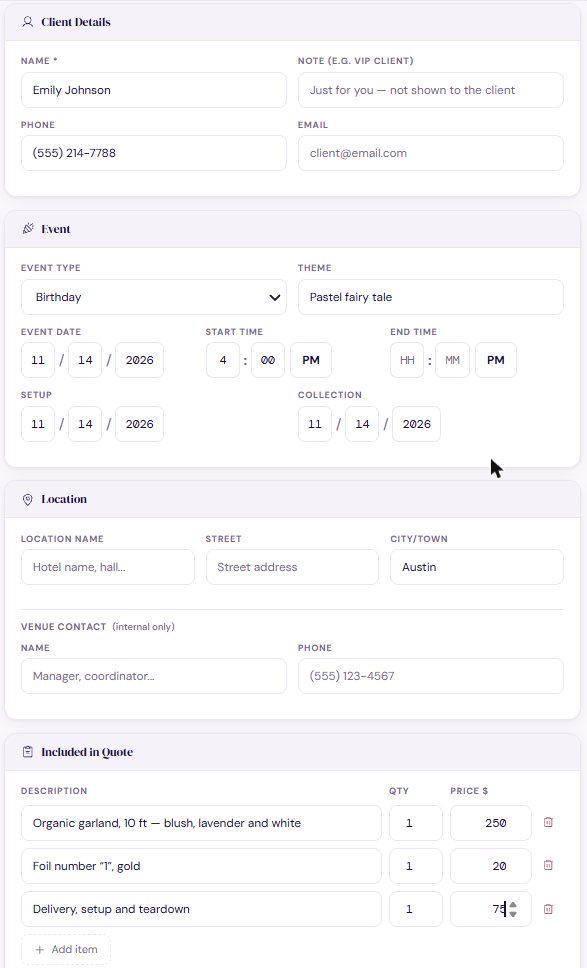
Only the client's name is required. Everything else is optional, but useful:
- Phone and email — so the contact lives with the job.
- Event type, theme, date and start time — the date goes on your calendar.
- Setup and collection fill in with the event date. Change them if you set up the day before.
- Location — venue name, street and city.
“Note (e.g. VIP client)” and “Venue contact” are just for you — the client never sees them.
3. What the quote includes
Add one line for each thing the client gets: description, quantity and price. “Add item” adds a line. The total at the top adds up by itself.
4. Deposit and expiry
Under Deposit, choose a percentage (many US decorators ask 50%), a fixed amount or no deposit — the amount shows right away. Quote valid until sets how long the price holds: 7, 14 or 30 days. Change the defaults in Settings.
Use “Client Notes” for terms the client should see — for example when the balance is due. “Internal Notes” are just for you.
5. Add photos
At the bottom, under Photos, tap “Add” and upload up to 3 photos — on every plan, including Free. The photos go into the PDF below the quote.
What to add: the inspiration photo your client sent, a similar design you've made, or a sketch of the idea. Your client sees exactly what they're getting, and you have a record of what you agreed on.
6. Save and send
- Tap Save. The quote goes to My Quotes as a draft.
- Tap Print/PDF to see the quote exactly as your client will.
- Tap Download PDF and send it to your client — by text, WhatsApp, Instagram DM or email.
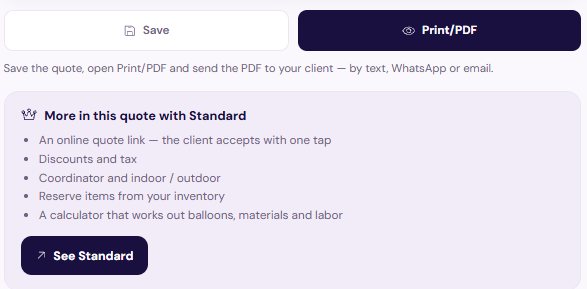
With Standard you can also send the quote as a link: your client opens it on their phone, taps “Accept the quote”, and you see when they viewed and accepted it. Standard also adds discounts and sales tax, inventory reservations and a calculator that works out balloons and labor.
7. Track your quotes
My Quotes lists every quote with its status: Draft → Sent → Accepted → Deposit Received → Completed (or Declined). Use Change to update the status when the client replies, and + Payment to record a deposit or the balance — your dashboard then shows the money you're expecting.
Need to change something? Tap Edit, fix it and save again — editing a saved quote doesn't count as a new one.
Snap & Quote: Let Studio Count the Balloons for You
Upload a photo of a balloon design — Studio finds the elements and colors, counts the balloons and starts your quote. 10 free analyses on every plan.
Can't find an answer? Email us at [email protected] — Nadezhda replies personally. · All guides