The Bell, Notifications and How to Reach Us
Eleira Studio guide · about 3 min
The bell at the top right of Studio gathers everything that's waiting for you. Here's what each item means, how to message us right from Studio, and how to get notifications on your phone.
1. What's in the bell
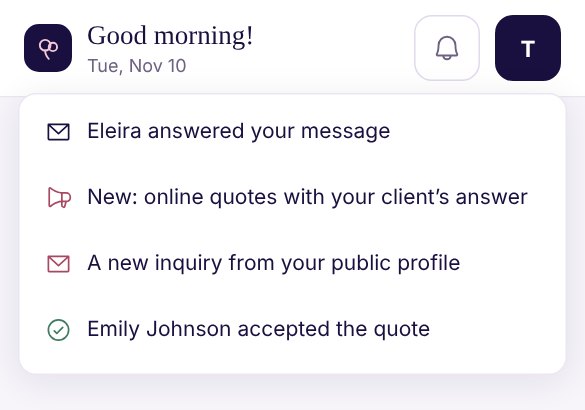
- “Emily Johnson accepted the quote” (or is considering, or declined) opens My Quotes. See Online quotes.
- “A new inquiry from your public profile”: a client messaged you from your eleira.net page. Opens Direct inquiries.
- A filled-in questionnaire or an accepted contract: a client completed a form you sent.
- “Eleira answered your message”: we replied to you. Opens the conversation.
- A notice from Eleira (megaphone icon): news or something important from us. It opens in a window with Got it, and sometimes a See it button to the right screen.
- Replies in Community on topics you started or wrote in.
The bell checks for news by itself every few minutes while Studio is open. When there's nothing new, it says so.
2. Message us from Studio
A question, a bug or an idea? Message us right from Studio:
- On a computer, click Contact Us at the bottom of the left menu. On your phone, open Settings → Help & Feedback → Contact Us.
- Pick Question, Bug, Idea or Other.
- Write your message and tap Send.
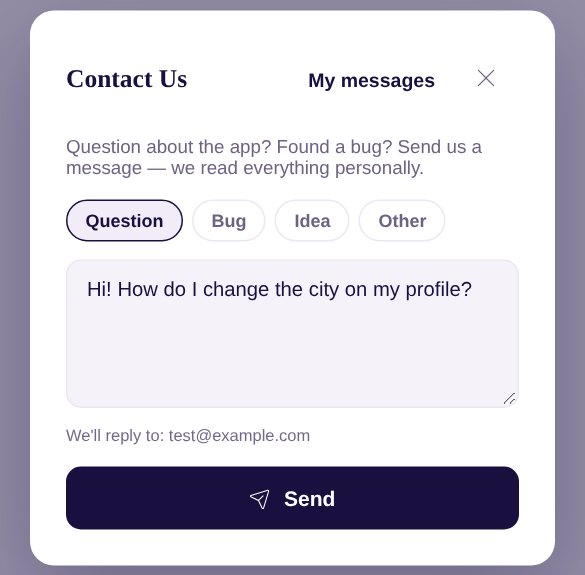
We read everything personally. The answer comes by email and in the bell. Tap “Eleira answered your message” to see the whole conversation, and reply right below it.
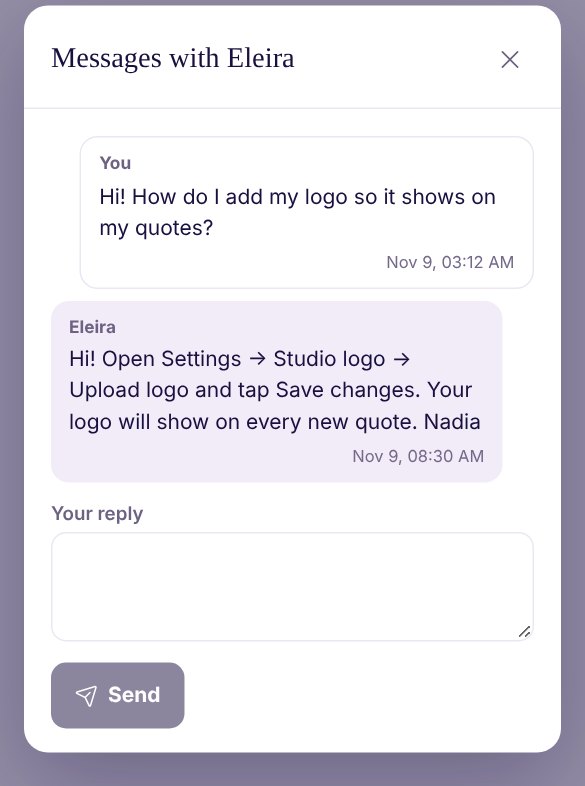
All your past conversations are under My messages, at the top of the Contact Us window.
3. Notifications on your phone
Want to know right away when a client messages you or answers a quote, even when Studio is closed?
- Add Studio to your home screen. On Android, go to Settings → App and tap Install app. On iPhone, open Studio in Safari, tap Share (the square with an arrow), then Add to Home Screen. From then on, open Studio from the new icon.
- Open Settings → App and tap Enable notifications. Your phone asks for permission: choose Allow.
If it says “Blocked in browser settings”, allow notifications for app.eleira.net in your phone's settings and try again. On iPhone, notifications only work when Studio is on your home screen.
Plans: What’s Included, How to Upgrade and How to Cancel
Free, Standard and Premium: what’s in each, monthly or yearly billing, how to change your plan and how to cancel any time.
Can't find an answer? Email us at [email protected] — Nadezhda replies personally. · All guides