Online Quotes: Send a Link and See Your Client’s Answer
Eleira Studio guide · about 4 min
With an online quote, your client doesn't get a file, they get a link. They open it on their phone, see your quote with your logo and answer with one tap: accept, considering or decline. You see the answer in Studio and decide what's next. Online quotes come with Standard and Premium. On the Free plan, your quote reaches the client as a PDF (see Your first quote).
1. Send your quote as a link
Fill in your quote in Quick Quote as usual. At the bottom, tap Share as link. The quote saves by itself.
- On your phone, the share menu opens. Pick Messages, WhatsApp, Messenger or email and send.
- On a computer, the link is copied. Paste it into your message to the client.
Online preview shows the quote exactly as your client will see it. With Premium you also get Send by email, once you've filled in the client's email.
2. What your client sees
Your quote with your logo and colors: what's included, the price, the deposit and how long it's valid. At the bottom there are three buttons:
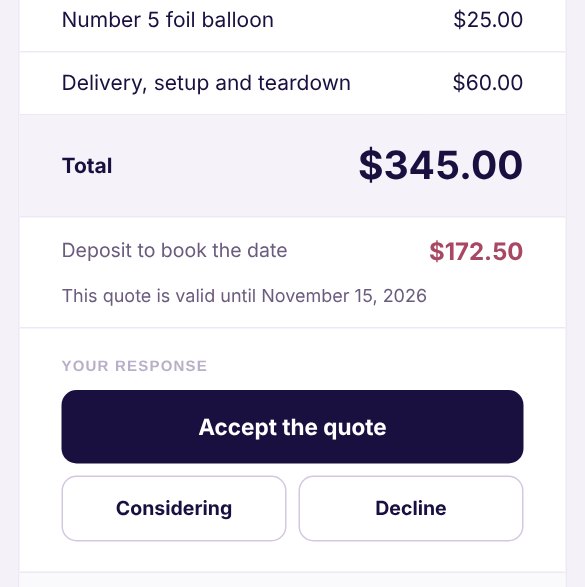
- Accept the quote, Considering or Decline. Before sending, the client can add a note or question, like “Could you set up at 1 PM?”.
- If the quote has a contract or attachments, the client accepts them with a tick and their name.
- After they answer, your client is told you'll reach out to confirm the date and deposit. So don't forget to call or text them.
The link always shows the latest version. If you change the quote with Edit and save it, your client sees the change on the same link. Just let them know you've updated it.
3. Where you see the answer
- An email as soon as your client answers, such as “Emily Johnson accepted the quote”, with their note and an Open the quote button. If you've turned on phone notifications, you get one there too.
- The bell at the top right of Studio: for example, “Emily Johnson accepted the quote”.
- My Quotes: a colored strip sits above the quote. Green is “Client: accepted”, gray is “considering”, pink is “declined”. Next to it is the client's note. The New tag stays until you open My Quotes.
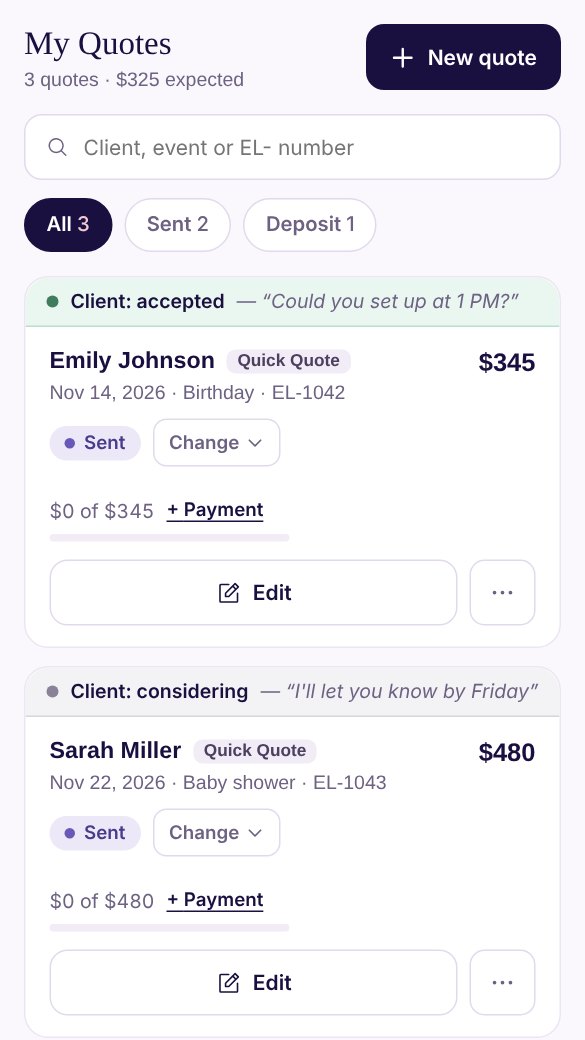
If a client has been considering for more than 3 days, Studio emails you that it's time to follow up.
4. Change the status
Studio doesn't change the status by itself when your client answers. You decide: talk to your client first, then tap Change next to the status and pick the new one.
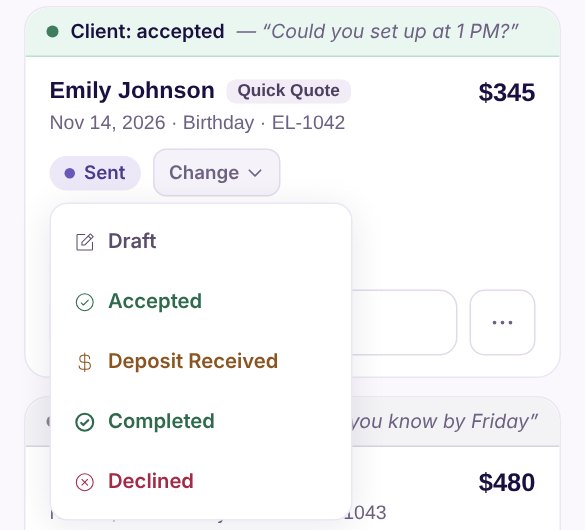
- Draft: not sent yet.
- Sent: waiting for an answer.
- Accepted: the client confirmed. The amount counts toward “expected” at the top of the screen and the Pack list button appears. Until a payment is recorded, the quote shows “Deposit not yet collected”.
- Deposit Received: Studio asks how much the deposit was and records it as a payment.
- Completed: the event is over. If you track inventory in Studio, you'll see what was used so you can take it off your stock.
- Declined: the client said no.
Use + Payment to record every payment, such as the balance on the day of the event. The bar under the price shows how much has been paid.
Prep, Setup and Collection: Times in Your Quote and Calendar
How to record when you prep, set up and collect, change it right from the calendar and spot overlaps. Plus the evening “Tomorrow” email.
Can't find an answer? Email us at [email protected] — Nadezhda replies personally. · All guides